
No matter which SIM (EE, Vodafone, O2) you are using in your phone, if you have data, sometimes the internet just doesn’t work. Let’s fix this problem right now to restore connectivity without having to rely on Wi-Fi only.
Why is my mobile data not working but I have data?
If mobile data is on but you have no internet connection, your phone software might be glitching, your limit is breached, or your network settings need to be reset.
How to fix data suddenly not working?
To fix mobile data on your EE, Vodafone, or O2 SIM that has suddenly stopped working, toggle Airplane Mode on for 10 seconds and turn it back off to force your phone to reconnect to the nearest cell tower.
If that quick fix does not work, follow these troubleshooting steps to locate and resolve the issue.
1. Check local network coverage
You might be using your phone in an area or place where your network provider has little or no coverage. If you are outside, wait for the signals to show up on the screen. While indoors, switch rooms to get better coverage so mobile data works.
2. Reinsert the SIM or use a replacement
The next fix for EE mobile data not working is to remove the SIM card and reinsert it correctly. To do this, use the ejector tool that comes with your phone to take it out of the tray and then reseat it correctly.
There is also a possibility that the SIM you are using is faulty. You can verify this by inserting another one from a different provider into the same slot. If the internet works this time, contact support or visit their center for a replacement.
3. Set mobile data limit
O2 mobile data might not be working if you are about to reach the daily or monthly data limits. Most phones display a warning message in this case.
The solution is to make sure your Android or iPhone matches your current data limit. Go to Settings > Mobile Data > Data Usage, and ensure that your data limits are set correctly.
Pro Tip: Also, turn off Low Data mode on your iPhone and Data Saver mode on your Android.
4. Disable content lock (EE SIM)
The Content Lock might be enabled in your EE account settings, and that might be the reason your mobile internet failed to work. To fix this, log in to your account, head to Content Lock> Moderate, and turn off Content Lock.
5. Reset content settings on iPhone
If you are using an iPhone, you can remove the bugs causing it to glitch your internet data. For this, navigate to Settings > General > Reset > Erase All Content and Settings, and tap Reset to confirm the action.
Quick Tip: If the above solution fails to work, go to Settings > Cellular > Cellular Data Network, and make sure APN is set as everywhere and username and password as “eesecure.”
6. Reset network settings
A quick way to fix data and get internet on your Android is to simply reset the phone’s network settings:
- Open Settings.
- Head to System > Reset Phone, and tap Reset Wi-Fi Settings.
- Select the EE, O2, or Vodafone SIM and tap Reset Settings.
7. Reset mobile data APNs
It is possible to make mobile data work on your phone by resetting the Access Point Names for your EE, O2, or Vodafone SIM.
Head to Settings > Connections > Mobile Networks > Access Point Names, and select your SIM. Then, tap the three-dot menu at the top right and select Reset to default.
8. Configure APN protocol
The next solution is to configure the APN protocol to use IPv4 and IPv6:
- Navigate to Settings > Connections > Mobile Networks > Access Point Names, and select your EE SIM.
- Tap APN Protocol.
- Select IPv4/IPv6.
9. Enter your APN settings manually for UK PAYG SIMs
Incorrect APN settings are often saved on the Android after a software update, which results in Vodafone mobile data not working. The same goes for EE and O2 SIMs.
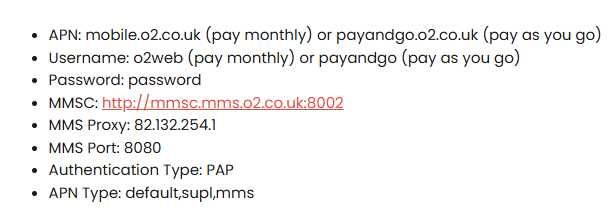
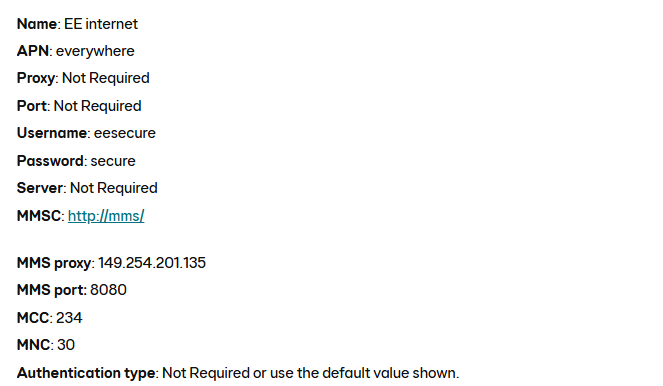
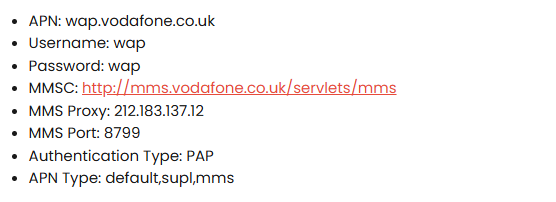
In this case, manually create a new APN address for the EE SIM. Head to Settings > Connections > Mobile Networks > Access Point Names, tap the + sign at the top, and enter the following details:
O2 APN
EE APN
Vodafone APN
Setting up on Android
- Go to Settings > Connections (or Network & Internet).
- Tap Mobile Networks > Access Point Names.
- Tap the + (Add) or three-dot menu and select New APN.
- Enter the details listed above. Leave any unlisted fields blank or as “Not set”.
- Tap the three-dot menu and choose Save.
- Select the new APN from your list to activate it, then restart your phone.
Setting up on iPhone
iPhone APN settings are usually managed automatically by carrier profiles. If you need to enter them manually:
- Go to Settings > Mobile Data > Mobile Data Network.
- Enter the APN.
- Leave Username and Password blank.
- Scroll down to MMS and enter the MMSC, Proxy, and Port details from above.
- Go back to the main menu to save, then restart your phone.
Takeaway
The use of mobile data is very crucial these days as you need constant access to the internet, especially if you don’t have Wi-Fi near you. Hopefully, your EE, O2, Vodafone, or any other SIM is now keeping you online after trying out useful fixes in this guide.
